
Tag people on Kanban cards
Let a field hold several people, such as every reviewer on a sale, and tag them from the board.
The screenshots show the English interface. The buttons are in the same places, and most are labelled in your language.
A person field (type User Assignment) holds one or more workspace members, such as a sales agent or the reviewers of a sale. On a board you can tag them straight from the card.
Let a field hold several people
- 1
Choose Field in the toolbar, type a name, then choose Advanced settings and set the field type to User Assignment.
- 2
Tick Allow more than one person and choose Create field. To change a field you already have, edit it from the fields page instead.
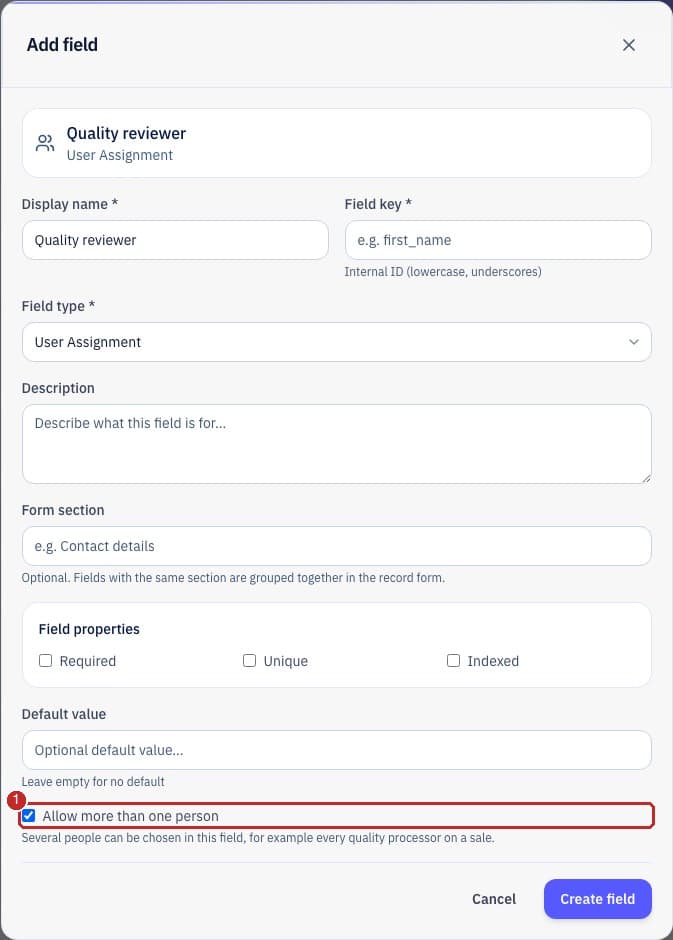
- 1Allow more than one person: without it the field holds one person. You can switch back to one person later, unless a record or an automation already holds several.
Show the people on the cards
- 1
On the board, choose View. Under Visible fields, tick the person fields you want on every card.
- 2
If the app has more than one person field, Assign button on cards picks which one the button at the bottom of each card edits. The default is the first person field, and the button carries that field name.
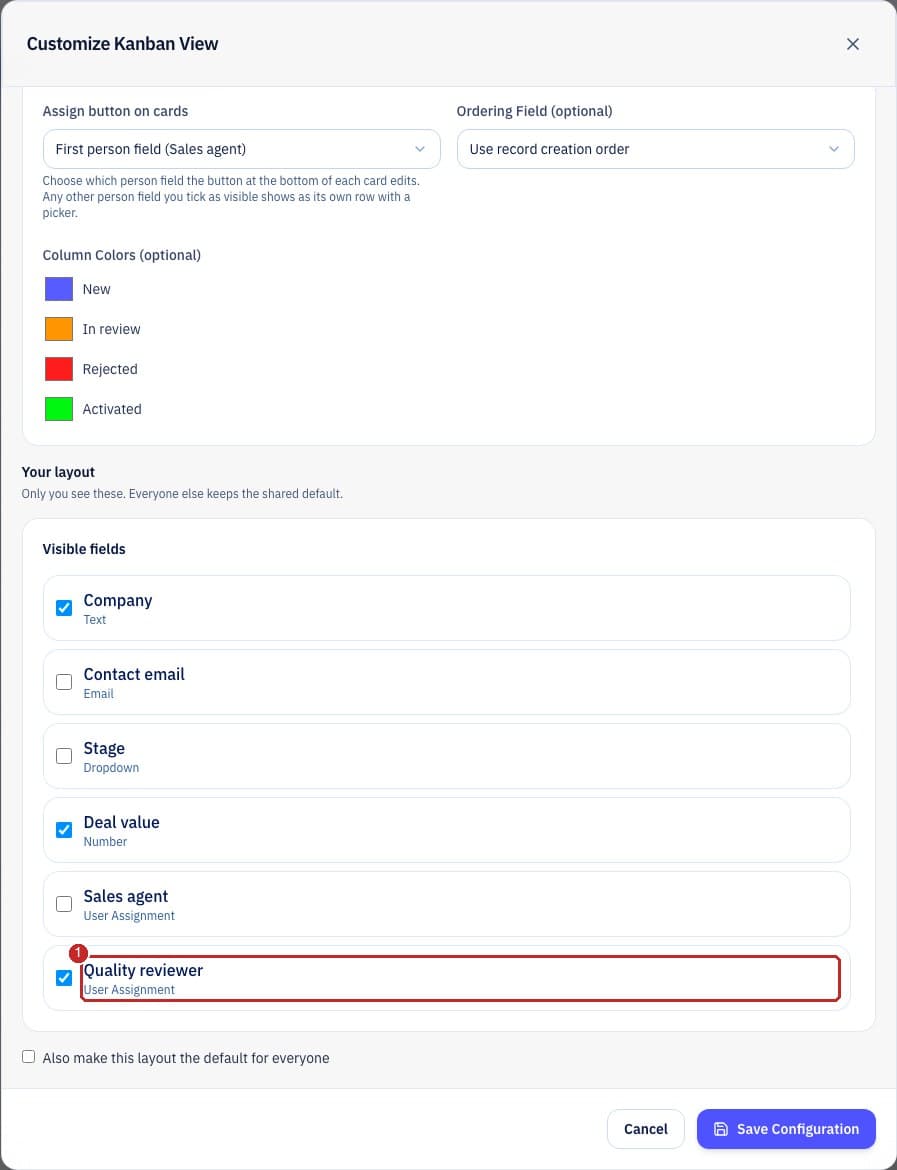
- 1Tick a person field to show it as its own row on the cards. These choices are under Your layout, so each person chooses what they see.
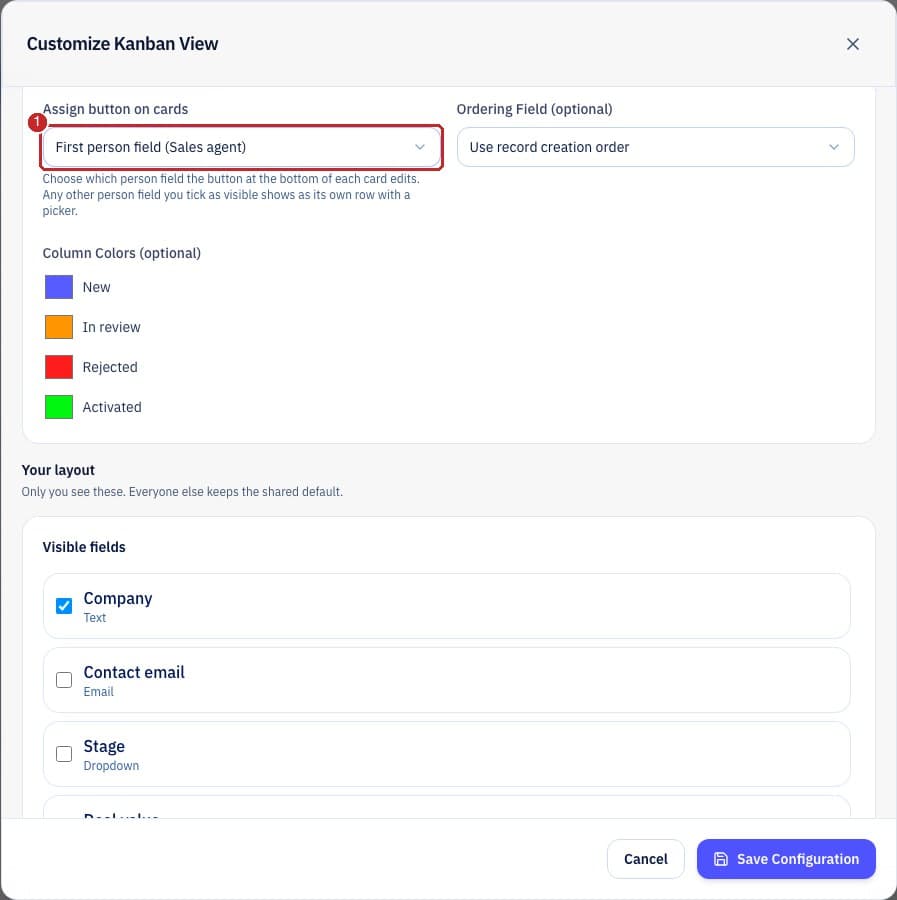
- 1Assign button on cards appears when the app has more than one person field.
Tag people
Click the picker on a person row, or the button at the bottom of the card, then tick the people to add or untick the ones to remove. It saves a moment after your last click.
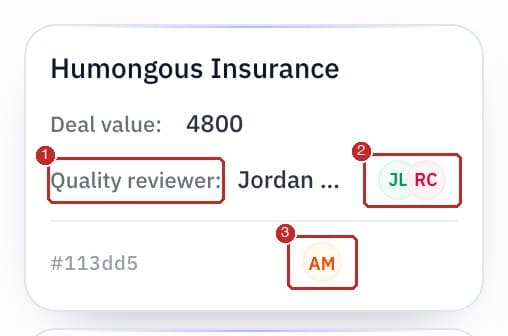
- 1A person field shown as a row, with the names of the people.
- 2Click to choose people.
- 3The button at the bottom edits the field chosen in the board settings.

- 1Tick the people to tag. Only members of the workspace are listed.
Related guides
- For everyone
Choose what you see
See every column with Table view and sideways scrolling, and choose which fields show with View.
Read guide - For app builders
Show a total at the top of each Kanban column
Show a sum, average, lowest or highest figure for each column, as a number, a currency or a percentage.
Read guide
Need more help?
Our team is happy to help.