
Choose what you see
See every column with Table view and sideways scrolling, and choose which fields show with View.
The screenshots show the English interface. The buttons are in the same places, and most are labelled in your language.
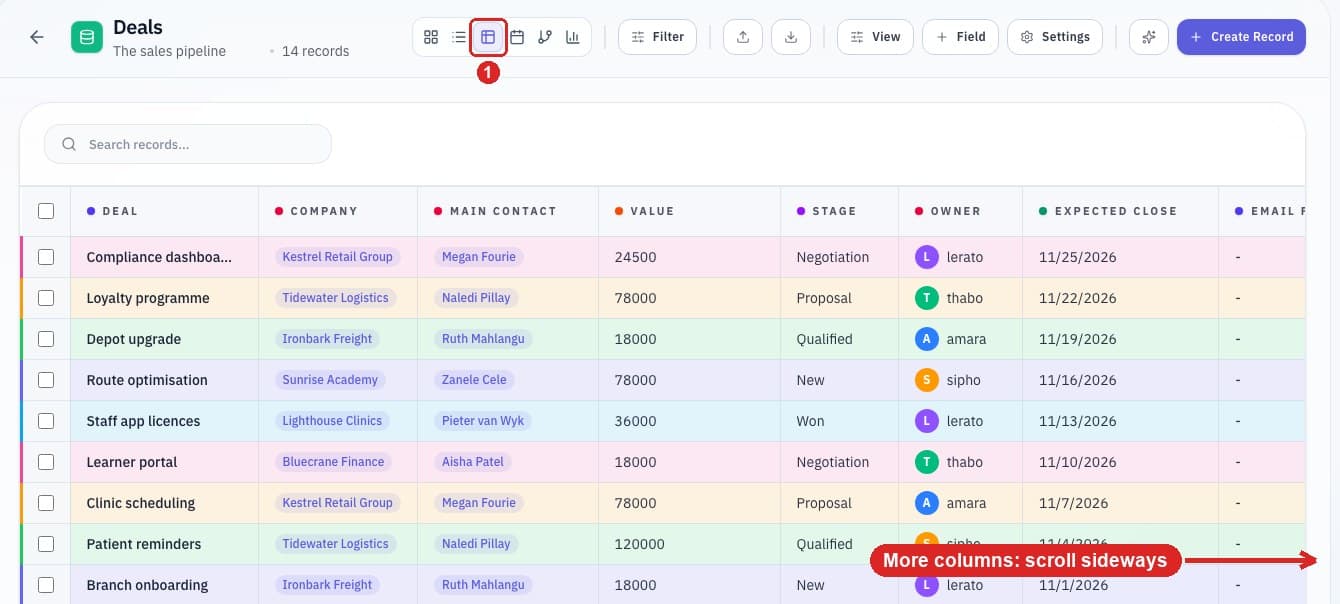
An app with many fields cannot show every column at once. You can scroll to the rest, and you can choose which fields appear.
See every column: use Table view
- 1
Click the Table icon in the toolbar.
- 2
Scroll sideways to reach the rest: swipe left or right on a trackpad, hold Shift while turning the mouse wheel, or drag the scroll bar along the bottom of the table.
Choose which fields show: View
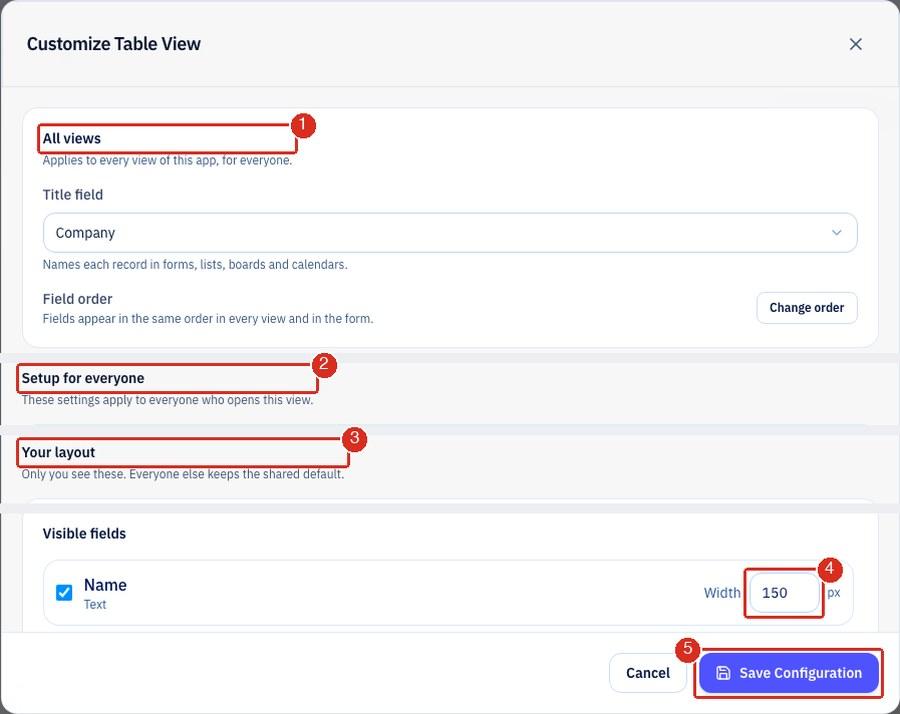
- 1All views holds what is the same everywhere in the app, such as the title field. Only people who can edit the app can change it.
- 2Setup for everyone holds settings other people see too, such as row colours.
- 3Your layout is yours alone: the sort, the row height and which fields show. Tick a field to show it. Untick it to hide it.
- 4Width sets how wide the column is, in pixels.
- 5Choose Save Configuration to keep your choices.
Click View in the toolbar to open this. The window is named after the view you are in, such as Customize Table View. List and Table share the same layout. Hiding a field only hides the column. The data stays and you can show it again.
Related guides
- For everyone
Find your way around an app
What each button in the app toolbar does, from the view icons to Import, Export, View and Settings.
Read guide - For app builders
Change stages in a Custom Data app
Edit the options of your dropdown field to add, remove or rename stages, dispositions or statuses.
Read guide
Need more help?
Our team is happy to help.