
Import records from a spreadsheet
Add many records at once from a CSV or Excel file, and avoid duplicates.
The screenshots show the English interface. The buttons are in the same places, and most are labelled in your language.
Add many records at once from a CSV or Excel file (.csv, .xlsx or .xls, up to 10 MB). Open a Custom Data app and use the Import icon in the toolbar.
- 1
Put your field names in the first row of the file. Column headings are matched to the app’s fields, so a column called Deal fills the Deal field.
- 2
Click the Import icon, then drop the file on the box or click it to choose a file.
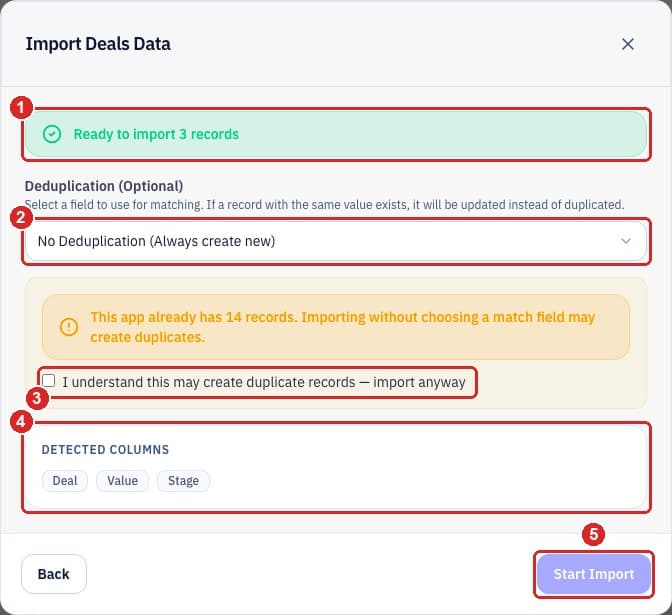
- 1The green banner shows how many records were found (at most 10,000: any rows after that are ignored). Check it is the number you expect.
- 2Deduplication: choose a field to match on, such as an ID or email. A record with the same value is updated instead of duplicated.
- 3If the app already has records and you choose no match field, tick this box to confirm you want new records even if they already exist.
- 4Detected columns lists the headings found in your file.
- 5Start Import stays greyed out until you choose a match field or tick the box.
Related guides
- For everyone
Find your way around an app
What each button in the app toolbar does, from the view icons to Import, Export, View and Settings.
Read guide - For app builders
Change stages in a Custom Data app
Edit the options of your dropdown field to add, remove or rename stages, dispositions or statuses.
Read guide
Need more help?
Our team is happy to help.