
For everyone
Find your way around an app
What each button in the app toolbar does, from the view icons to Import, Export, View and Settings.
The screenshots show the English interface. The buttons are in the same places, and most are labelled in your language.
Every app has the same toolbar along the top. Workflow apps and Custom Data apps share almost all of it. Hover over an icon to see its name.
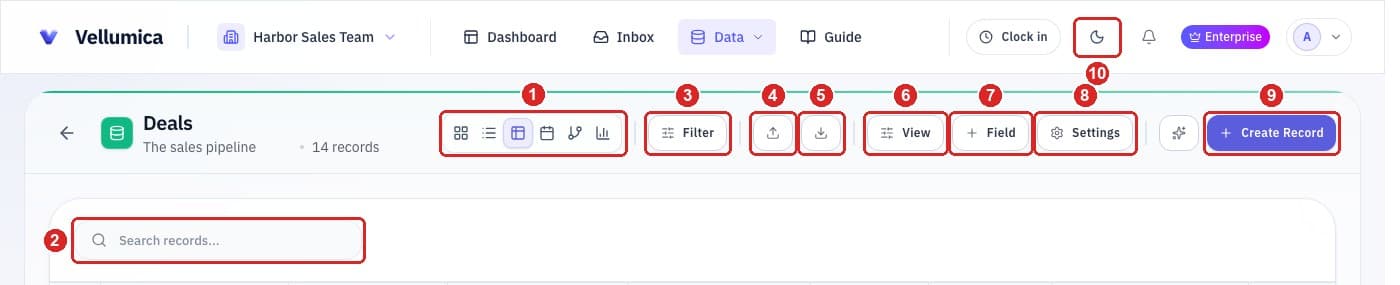
- 1View icons. Switch between Board, List, Table, Calendar, a map of how apps link, and Analytics. They all show the same records.
- 2Search. Type to find records.
- 3Filter. Opens a row of filters such as Assignee, Priority, Date range and Has attachments. Choose + Filter to add more.
- 4Import. Add records from a spreadsheet.
- 5Export. Download the records as a file. Owners and admins have this by default.
- 6View. Choose which fields show, and in what order.
- 7Field. Add a new field to the app.
- 8Settings. The app’s name, fields and, in a Workflow app, its stages.
- 9Create Record. Add a new record. In a Workflow app this is New Card.
- 10Dark mode. In the top bar. Switch between light and dark.
Greyed-out buttonsA button is greyed out when your role does not allow it, for example Import, Field, Settings or Export. Ask an administrator if you need one of them.
Text too big, or part of the page cut off?Zoom the browser out a little: Ctrl and minus on Windows, Cmd and minus on a Mac. Table view also scrolls sideways, which “Choose what you see” explains.
Related guides
Need more help?
Our team is happy to help.