
Change stages in a Custom Data app
Edit the options of your dropdown field to add, remove or rename stages, dispositions or statuses.
The screenshots show the English interface. The buttons are in the same places, and most are labelled in your language.
In a Custom Data app, your stages, dispositions, statuses or categories are the options of a dropdown field. You change them by editing that field.
- 1
Open the app and choose Settings in the toolbar, then the Fields tab.
- 2
Choose Edit fields. This opens the page that lists every field in the app.
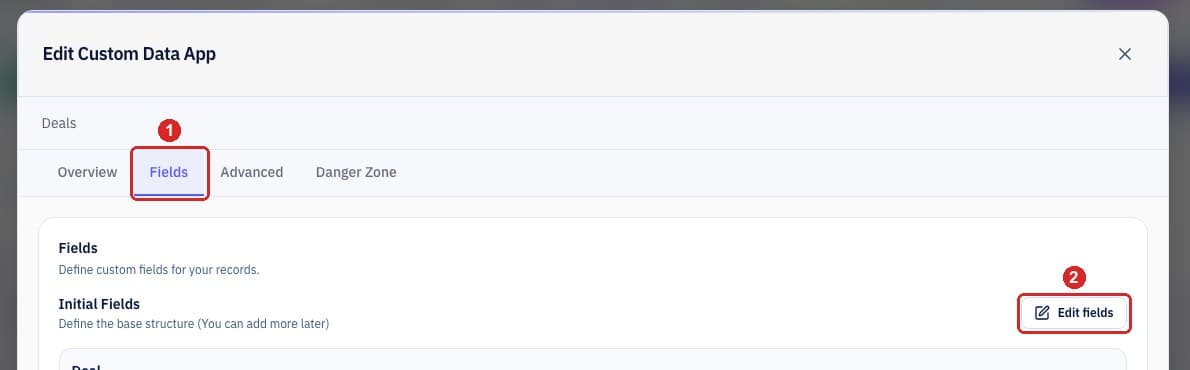
- 1The Fields tab.
- 2The Edit fields button.
- 3
Click the pencil next to the dropdown field.
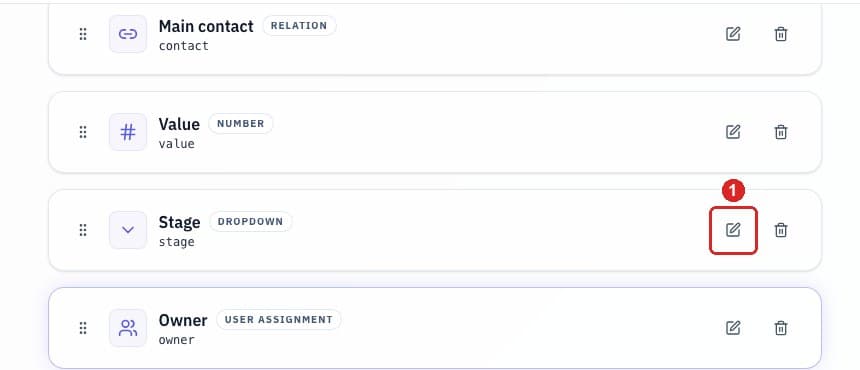
- 1The pencil edits the field and its options.
- 4
Scroll down to Options, make your changes, then choose Update field.
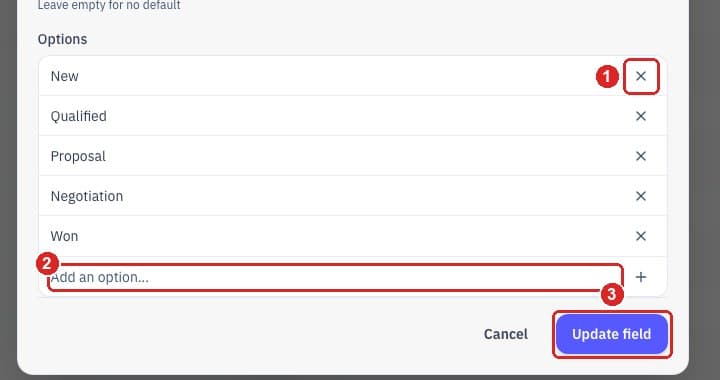
- 1Click the × next to an option to remove it.
- 2To add one, type it in Add an option… and press +.
- 3Choose Update field to save.
Reorder, rename or delete a column on the board
Board view shows one column for each option of your stage field. The first time you open it, choose Auto-configure Board.
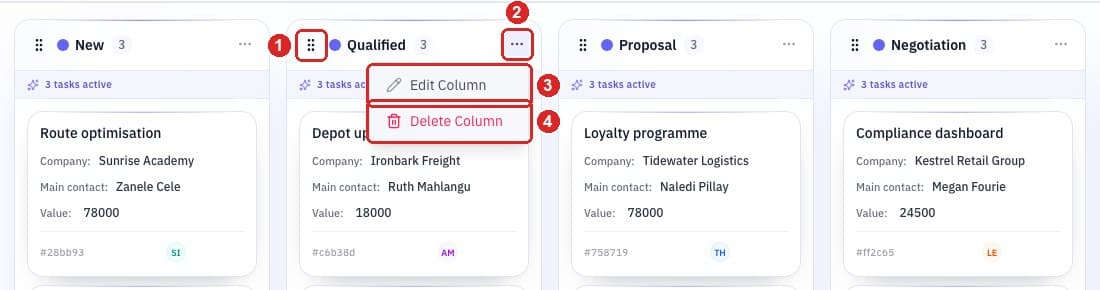
- 1Drag the handle to reorder the columns.
- 2Open the three-dot (…) menu.
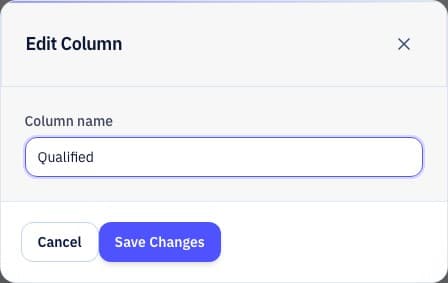
- 3Edit Column renames the option. Records that used the old name move to the new one.
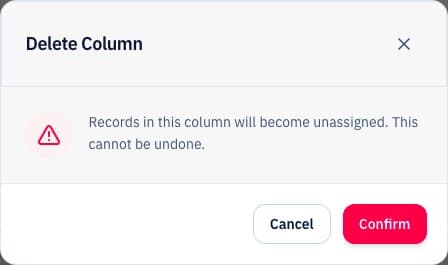
- 4Delete Column removes the option.
Edit Column
Type the new name and choose Save Changes.
Delete Column
Related guides
Need more help?
Our team is happy to help.