
Email people automatically when a record changes
Set up a rule that emails the right people when a stage or field changes, in four languages.
The screenshots show the English interface. The buttons are in the same places, and most are labelled in your language.
An automation can send an email as soon as a record changes, for example when a sale moves to a rejected stage. Open Automations from the menu and choose New Rule. A rule has three steps: name and app, trigger, and action.
Choose when it sends
- 1
Give the rule a name and pick the app, then continue to the trigger step.
- 2
Set Trigger to Field Changed and choose the field to watch in Watch field, for example the stage.
- 3
Choose Add condition to say which values count. For a dropdown field such as a stage, pick is one of and tick every value that should send an email.
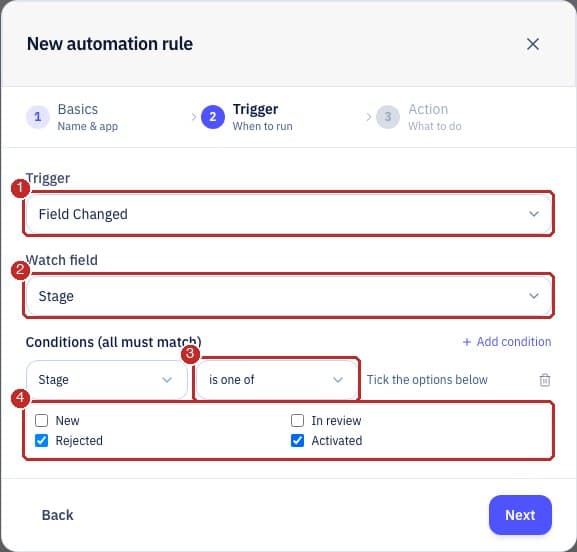
- 1Trigger: Field Changed runs the rule only when a value really changes, not when a record is saved with the value unchanged.
- 2Watch field is the field to keep an eye on.
- 3The operator. is one of appears for dropdown fields and lets one rule cover several values.
- 4Tick the values that should send the email. For other fields you can type a value; the rule shows a warning if it matches no option.
Choose who receives it
On the action step, set Action to Send Email. Then pick one or more kinds of recipient. They are combined, and nobody is emailed twice.
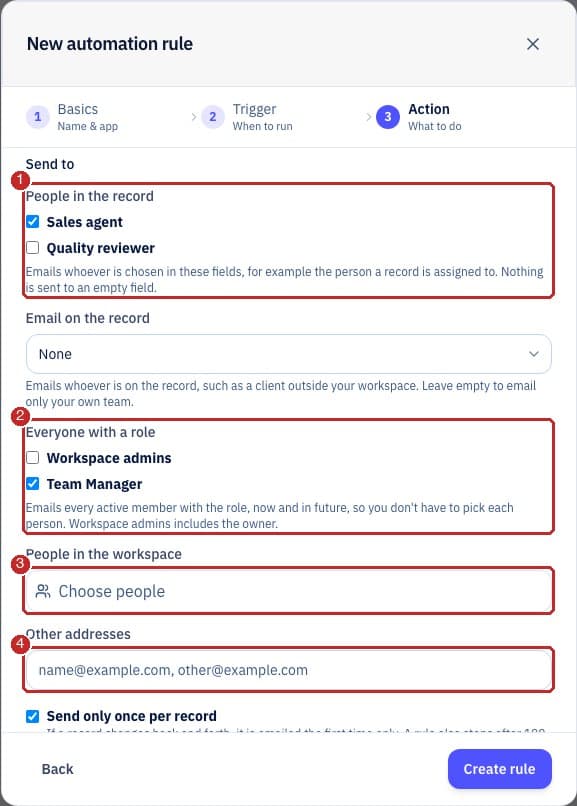
- 1People in the record: emails whoever is chosen in a person field of the record, such as the person it is assigned to. A record with nobody chosen sends nothing to that field.
- 2Everyone with a role: every active member with the role, now and in future, so you do not have to pick each person. This includes workspace admins and any role profile you have created.
- 3People in the workspace: pick individual members.
- 4Other addresses: type addresses for people outside the workspace, separated by commas.
Write the message
Choose Start from a template for a ready-made rejection, activation or internal notification in English, Spanish, French or Portuguese, then edit it. Email language sets the language of the fixed text in the email, and your own words are sent exactly as you write them. For Layout, use the notification layout for colleagues and the message layout for customers, which has no link to the record.
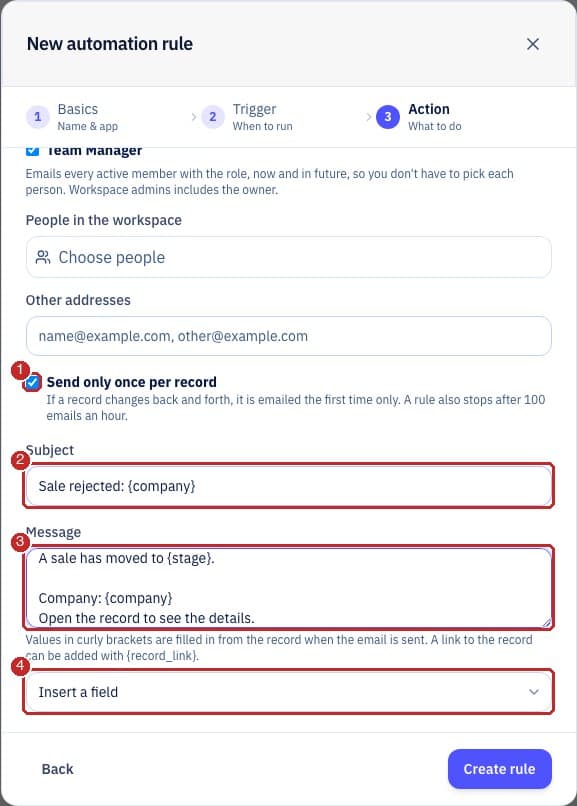
- 1Send only once per record: stops a record that changes back and forth from being emailed again. It is ticked by default. A rule also pauses after 100 emails in an hour.
- 2Subject: the title of the email.
- 3Message: write {field_name} to include a value from the record.
- 4Insert a field adds a value from the record, such as the company or the stage, so the name is always right.
Check the email
Before you turn a rule on for real people, create it with only your own address and move a test record. The email looks like this.
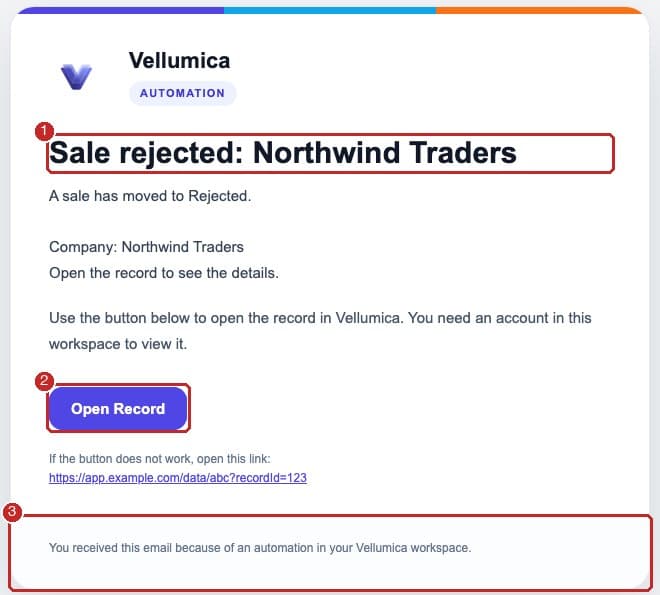
- 1The subject becomes the title.
- 2Open Record takes colleagues straight to the record. They need an account in the workspace.
- 3A short note explaining why the email arrived.
Turn a rule on or off
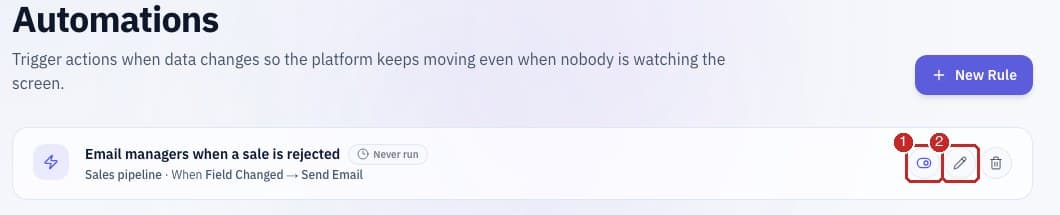
- 1Switch the rule on or off without deleting it.
- 2Edit the rule. A warning shows on its card if a condition matches no current option of its field.
Related guides
Need more help?
Our team is happy to help.